TradingView to MT5 Webhook: How to Automate Your Alerts
You have a TradingView alert that fires at the right moments, but your broker account lives in MetaTrader 5, and by the time you see the notification and place the order by hand the entry is gone. A TradingView to MT5 webhook closes that gap: the alert is sent as a small message to a server, and that server passes the order to your MT5 account in seconds. This guide explains how the bridge works, what TradingView requires, how to write the alert message, which safety checks matter, and when it is simpler to skip the bridge and run the indicator natively in MT5.
01Why traders are automating alerts this week
Gold has been the clearest example of why manual execution struggles in fast markets. Spot gold broke below $4,000 and traded near $3,880 an ounce on Friday, 30 October, its lowest level in about a year, according to Kitco. The Federal Reserve held rates steady at its Wednesday meeting, while Q3 GDP growth of 3.4% and high oil prices kept rate-hike worries alive, as GSI Exchange also reported in its weekly recap.
With the US nonfarm payrolls report due this Friday, many traders want their TradingView alerts to act on their own, with fixed rules for size and risk, instead of waiting for someone to tap a phone notification. That is exactly the job of a webhook bridge.
02How a TradingView to MT5 webhook works
A webhook is simply an HTTP request that TradingView sends to a web address you choose when an alert triggers. MetaTrader 5 cannot receive that request by itself, because the terminal is not a web server. So a working setup has three parts that pass the signal along.
1. TradingView alert
Your indicator or strategy condition triggers an alert. With the Webhook URL option enabled, TradingView sends the alert message to your server as an HTTP POST.
2. Bridge server
A small, always-on service receives the message, checks that it is genuine, validates the fields and stores the order instruction in a queue with a log entry.
3. MT5 Expert Advisor
An EA on your MT5 terminal (usually on a VPS) asks the server for new instructions, maps the symbol, sizes the trade by your rules and sends the order to the broker.
Some bridges talk to the broker’s API directly, but for most MT5 accounts the EA approach is simplest. In MQL5 the EA reaches out with the WebRequest function, and the server’s address must be added to the allowed list under Tools → Options → Expert Advisors before it will connect.
03What TradingView requires before a webhook will fire
Many failed setups trace back to a rule on TradingView’s side rather than a bug in MT5. According to TradingView’s webhook help page, these are the points to check first.
- Two-factor authentication must be enabled on your TradingView account before webhook alerts are allowed.
- Only ports 80 and 443 are accepted. A URL that points to any other port is rejected, so your server should answer on standard HTTP or, better, HTTPS.
- Three-second limit. If your server takes longer than three seconds to process the request, TradingView cancels it. The server should reply immediately and do the heavy work afterwards.
- IPv4 only. IPv6 is not currently supported for webhooks.
- JSON or plain text. A message that is valid JSON is sent with an application/json header; anything else arrives as text/plain.
- Delivery can fail. TradingView shows the result of every attempt in the Webhook status column of the alert log, which is the first place to look when a trade did not appear.
04Step by step: connecting your first alert
Here is the order we follow for client bridges. Test every step on a demo account before any live money is involved.
Write down the rules
Decide exactly what each alert means: which symbol, buy or sell, lot size or risk percentage, stop loss, take profit, and what happens if a position is already open. Ambiguity here becomes bugs later.
Set up the bridge server
Host the receiver on an HTTPS address (port 443). It should check a secret key in each message, reject anything malformed, respond within the three-second window and write every request to a log.
Install the EA on MT5
Run MT5 on a VPS so it stays online, attach the receiving EA to a chart, enable Algo Trading and add the server URL to the WebRequest allowed list.
Create the alert in TradingView
Open the alert dialog, choose your condition, paste the JSON message, enable Webhook URL in the notifications tab and enter your server address.
Test on demo and read the logs
Trigger test alerts, then compare three records: TradingView’s webhook status, the server log and the MT5 Experts journal. All three should agree before you go live.
05Designing the alert message
The alert message is the contract between TradingView and your EA, so keep it short, structured and unambiguous. TradingView fills in placeholders such as {{ticker}} and {{close}} when the alert fires, and strategies can add {{strategy.order.action}} for the buy or sell side. A typical message carries a secret key, the symbol, the action, the size and the protective levels.
The table below lists the fields we usually include. The example values are starting points to test on demo, not recommendations for any account.
| Field | Purpose | Example value (starting point) |
|---|---|---|
| key | Shared secret the server checks so strangers cannot send orders | a long random string |
| symbol | Instrument from TradingView, mapped to the broker’s name | {{ticker}} → XAUUSD or GOLD |
| action | buy, sell, close or close-all | {{strategy.order.action}} or a fixed “sell” |
| risk | Fixed lots or percent of balance, calculated in the EA | 0.5% of balance on demo |
| sl / tp | Protective levels in price or points | ATR-based distance you have tested |
| id | Unique alert ID so a repeated message is not traded twice | {{timenow}} plus strategy name |
| price | Price when the alert fired, used to reject stale signals | {{close}}, max slippage set in the EA |
Symbol mapping deserves extra care. TradingView might call gold XAUUSD while your broker lists it as XAUUSD.m, GOLD or XAUUSD+. A good EA refuses to trade an unknown symbol rather than guessing.
06Safety checks that protect your account
A bridge that works in a quiet test can still misbehave on a busy news day. These are the safeguards we build in, and the ones to ask any provider about.
Duplicate protection. Webhooks can be retried or alerts can fire twice. Each message needs a unique ID, and the EA should ignore an ID it has already executed.
Stale signal filter. If the VPS was offline for ten minutes, an old alert should not be filled at today’s price. Compare the alert time and price with the market and skip it if it is too far away.
Authentication. Check the secret key on every request and use HTTPS. TradingView publishes the IP addresses it sends webhooks from, so you can also allowlist them on the server.
Failure alerts. A silent failure is the expensive kind. Have the server or EA message you, for example on Telegram, when an order is rejected or the connection drops.
Our API and integration service includes retries, rate-limit handling, duplicate-order protection and error alerts as standard, because a missed or doubled order on a fast market is a real cost.
07When a native MT5 indicator is the better choice
A webhook bridge makes sense when your logic lives in TradingView, for example a private Pine Script strategy, or when one alert should feed several accounts. But many popular TradingView indicators are already available as native MT5 tools. Running the indicator directly in MetaTrader removes the server, the three-second limit and the symbol-mapping step altogether.
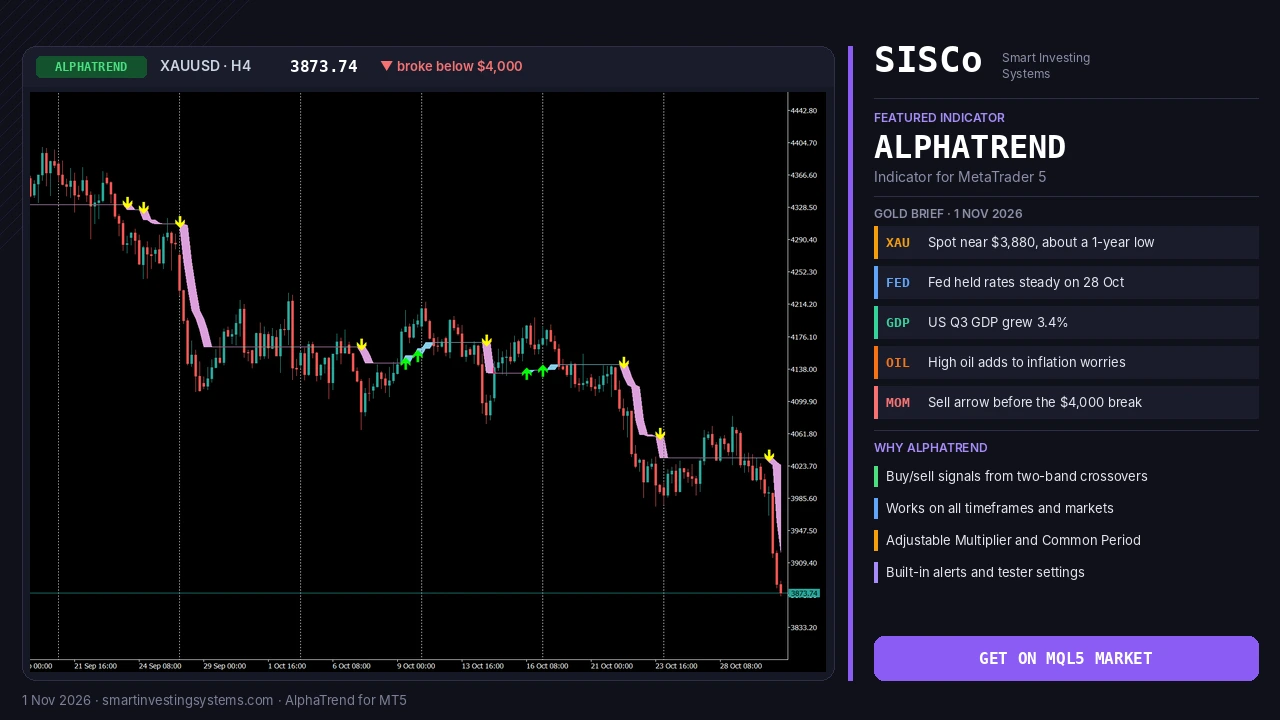
Take AlphaTrend for MetaTrader 5. It plots two bands on the chart and gives a buy signal when they cross upward and a sell signal when they cross downward. It works on all timeframes, lets you tune sensitivity with the Multiplier (default 1) and Common Period settings, offers a choice of price source and a with or without volume calculation mode, and includes alert settings and tester settings for evaluation in the Strategy Tester. If your TradingView alert was simply “AlphaTrend crossed down on XAUUSD”, you can get the same type of signal on the MT5 chart where you actually trade.
The banner chart shows AlphaTrend on gold’s H4 chart from mid-September to 30 October. It printed a run of sell arrows as XAUUSD slid from around $4,330 to the $4,150 area in late September. Buy arrows appeared twice in October, near $4,150 and $4,135, but price did not follow through. Fresh sell arrows followed from 22 October, and the final one came just before gold fell through $4,000 to 3,873.74, the last price on the chart.
📈 Bullish signal
- AlphaTrend’s two bands cross upward
- Higher-timeframe trend agrees with the signal
- Confirm with your own stop-loss and position-size rules
📉 Bearish signal
- AlphaTrend’s two bands cross downward
- Useful context on days like gold’s break below $4,000
- Avoid fresh entries just before major data such as payrolls unless your plan allows it
If you want the signal to place trades as well, an Expert Advisor can read the indicator directly inside MT5. You can compare AlphaTrend with other trend tools such as Trend Magic and HalfTrend before deciding which signal your EA should follow.
Choose a webhook bridge when…
Your logic is a private TradingView script, you trade several platforms from one alert, or you want TradingView to stay the single source of truth.
Choose native MT5 when…
The indicator exists for MT5, you want fewer moving parts, faster reaction and the ability to backtest the same logic in the MT5 Strategy Tester.
08Frequently asked questions
Can TradingView alerts open trades in MT5 automatically?
Yes. The alert is sent by webhook to a small server, and an Expert Advisor on your MT5 terminal, or the broker’s API, turns it into an order. TradingView itself does not connect to MetaTrader.
Do I need a VPS?
For an EA-based bridge, yes in practice. The MT5 terminal must be running and connected for the EA to pick up instructions, so a VPS keeps it online when your computer is off.
Why did my alert fire but no trade open?
Check the Webhook status in TradingView’s alert log, then the server log, then the MT5 Experts journal. Common causes are 2FA not enabled, a non-standard port, a slow server that misses the three-second limit, a URL missing from the WebRequest list, or a symbol name that does not match the broker.
Is it better to convert my TradingView indicator to MT5?
If the indicator is your only signal source, running it natively in MT5 is often simpler and lets you backtest it. If your edge depends on a TradingView-only script or a multi-account setup, a webhook bridge is usually the better fit.
Get your TradingView signals into MT5
Want a ready-made trend signal on your MT5 chart today? Try AlphaTrend with its free demo in the Strategy Tester. Need your own TradingView alerts to trade automatically, with duplicate protection and error alerts? Describe your rules and we will send a free quote through our custom EA request page.
Trading involves risk and you can lose money. This article is for education only and is not financial advice.
Alpha Trend · Expert Advisor · Gold · mt5 · TradingView
Related articles
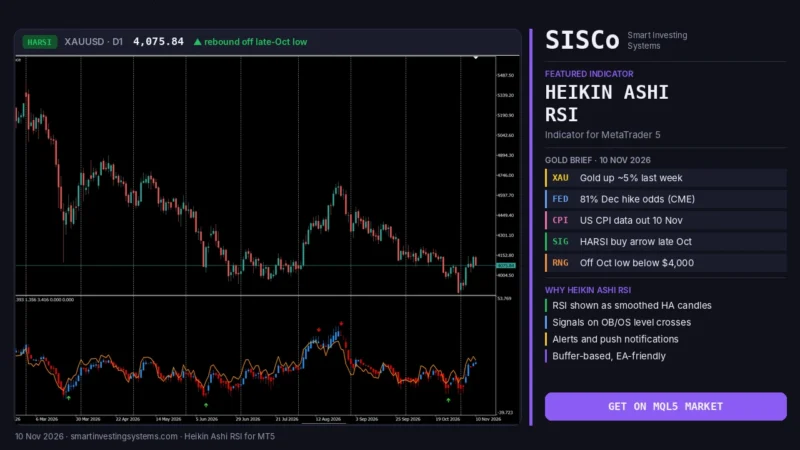
Heikin Ashi RSI MT5: How to Read HARSI Candles (Gold Guide)
Learn how the Heikin Ashi RSI (HARSI) indicator for MT5 turns RSI into smooth candles, which settings to test, and how to read it…
Read more →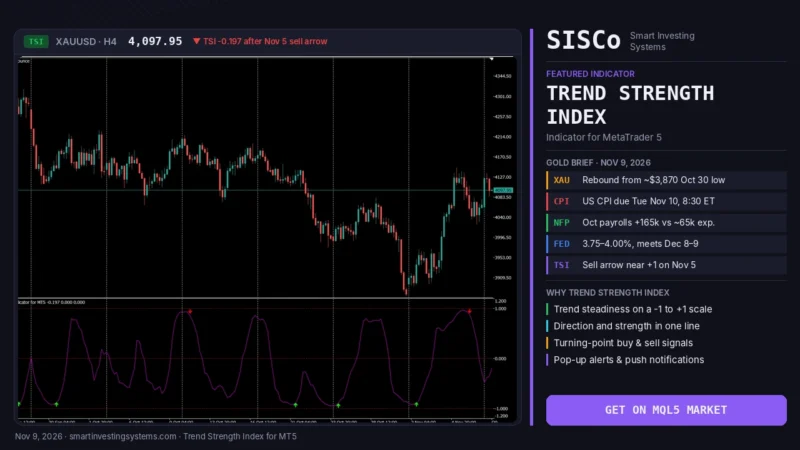
Trend Strength Index MT5: Is Gold’s Rebound Steady Before CPI?
Learn how the Trend Strength Index for MT5 shows how steady gold's rebound is before US CPI, with settings, signals and a step-by-step plan.…
Read more →
Convert MT4 EA to MT5: What OANDA’s MT4 Shutdown Means
Convert MT4 EA to MT5 before brokers like OANDA Japan switch off MT4. Learn what changes in MQL5, how to test it, and get…
Read more →Need a team that can design, build and maintain it all?
Let's talk. Tell us about your project and we'll reply with honest timelines.